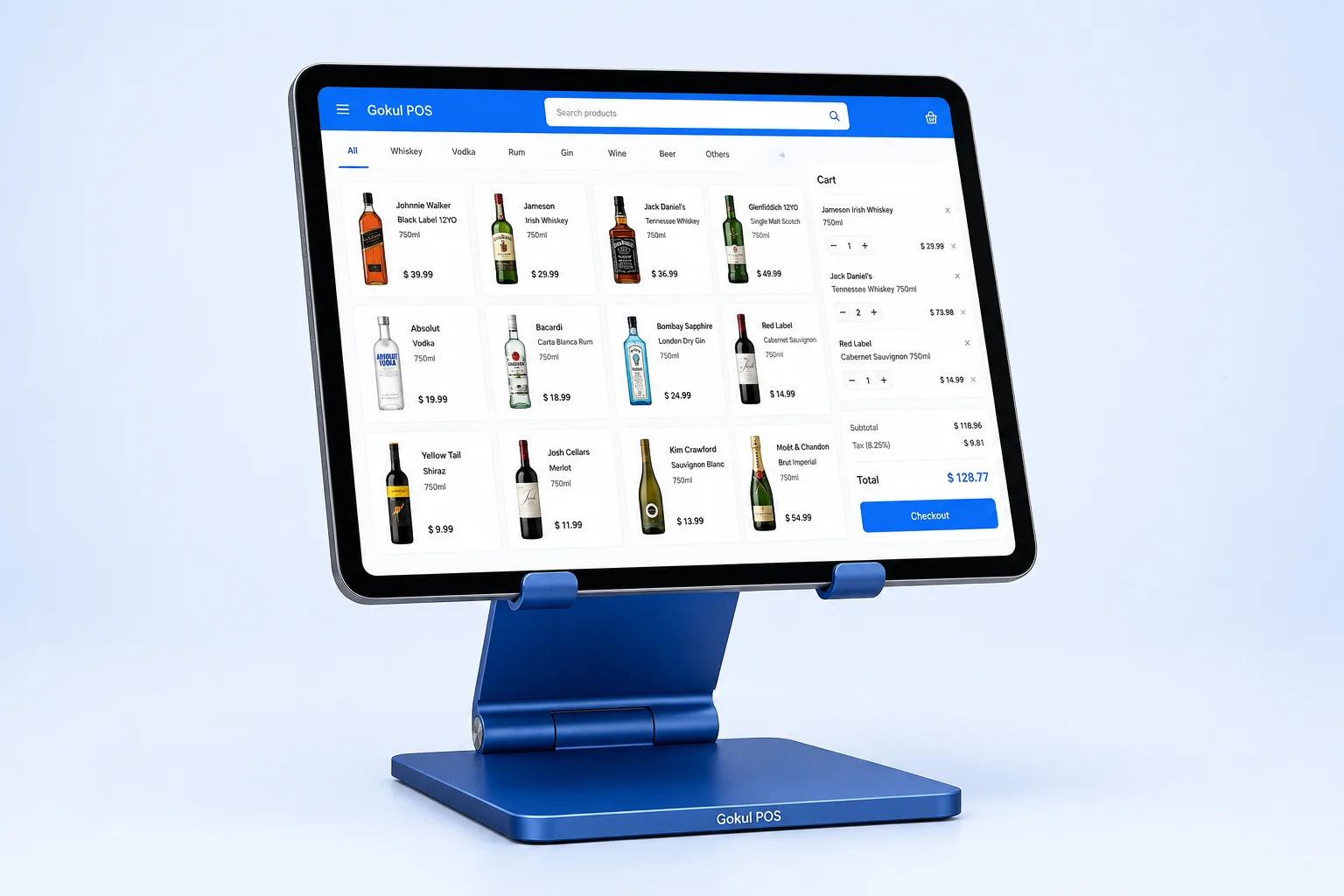
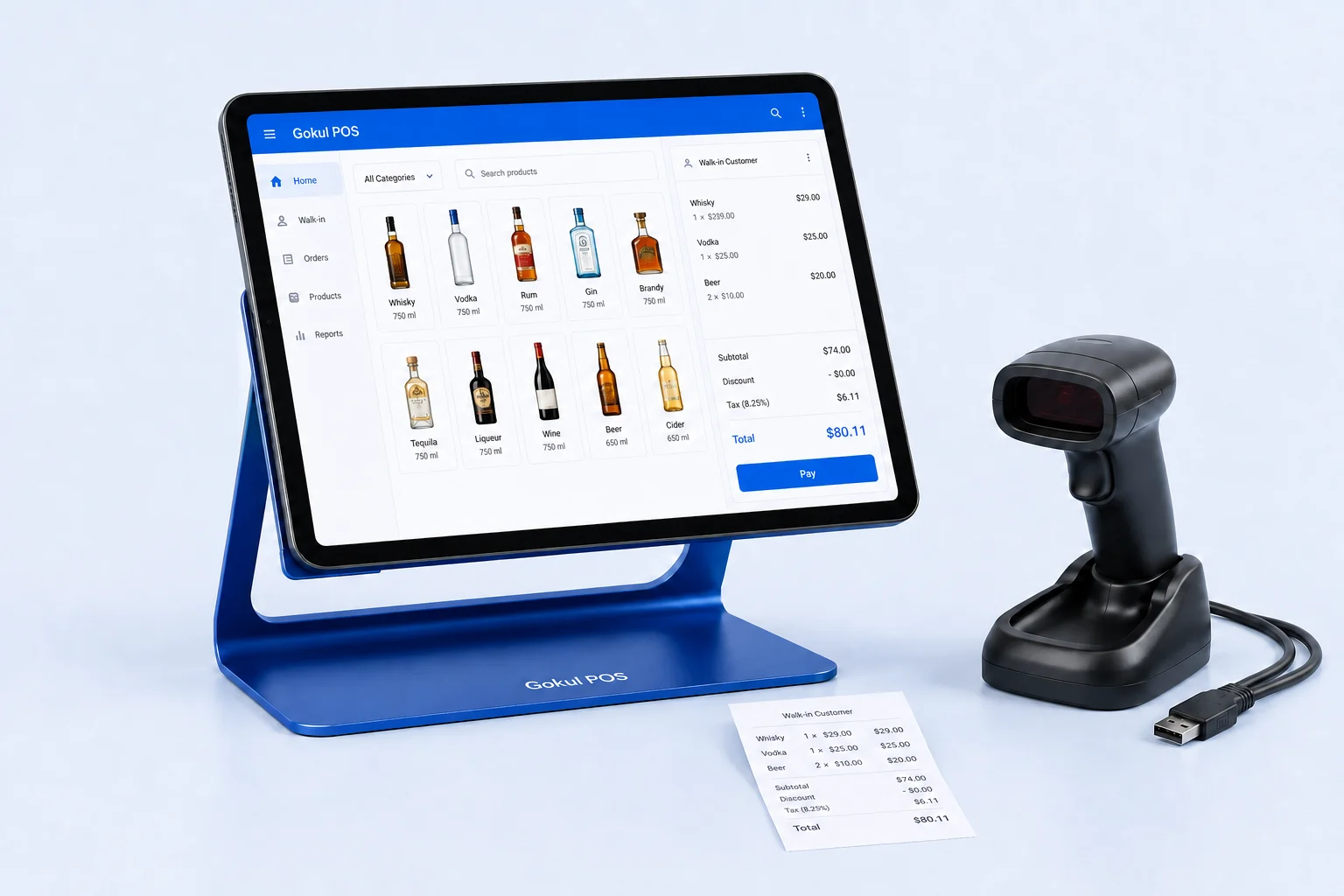
A useful hardware list starts with the space where your cashier works. The screen, scanner, charging cable, and payment device all have to fit around bottles, bags, receipts, and a customer’s hands. Before comparing packages, photograph the counter and measure the usable area. Mark the outlets, the customer side, and the path merchandise takes from arrival to bagging.
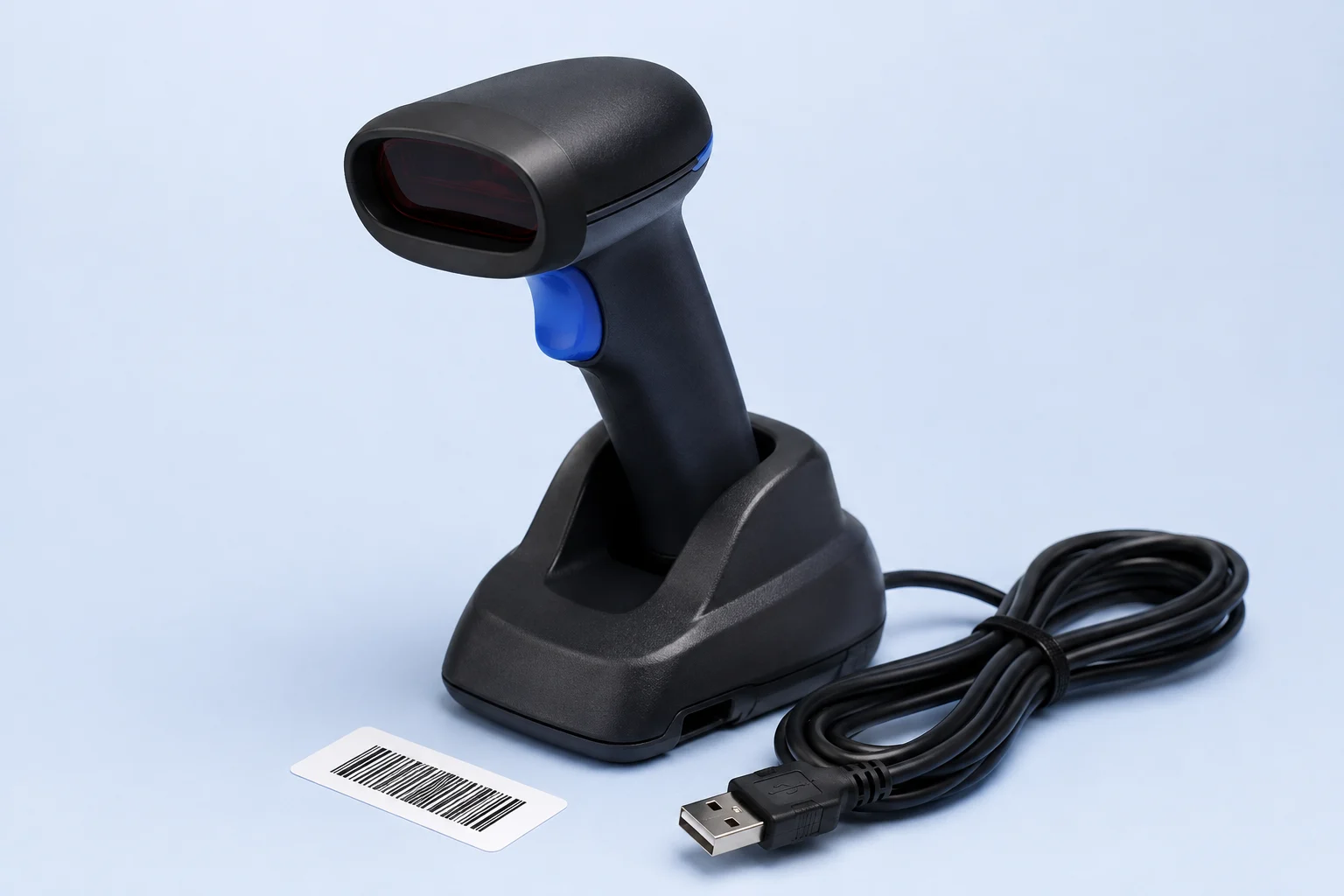
Gokul POS proposes an iPad, a physical barcode scanner, and a stand as the basis of a register package. Exact models, installation, and support belong in the written quote. Its current browser demo can help you explore checkout behavior, but it does not certify a hardware combination or process real payments.
Describe the work each station must handle
Write a short station brief before requesting equipment. Include peak staffing, whether the cashier works seated or standing, and whether customers place heavy cases on the counter. Specify where an employee checks identification without exposing it to the queue.
Use one ordinary sale and one difficult sale as reference tasks. Your ordinary sale might contain three bottles. The difficult one could include a damaged label, a quantity correction, and a customer who leaves the line to retrieve another item. In the demo, catalog search, SKU and barcode input, and held tabs provide useful rehearsal points.
Record which steps require a hand to leave the scanner. This tells you more about placement than judging a product photograph.
Confirm the whole compatibility chain
Ask for the iPad model, operating system, connector, scanner model, connection mode, and software version together. A scanner advertised for tablets still needs testing with the exact application and configuration you intend to use.
Apple describes pairing through the iPad’s Bluetooth settings after putting the accessory into discovery mode; it also notes that accessory compatibility can vary. Follow the accessory manufacturer’s instructions when testing the proposed scanner. Apple Bluetooth accessory guidance.
For a useful example of vendor-specific checks, Shopify publishes hardware and operating-system requirements for scanners used with Shopify POS. Those requirements apply to Shopify, and do not establish Gokul POS compatibility. Shopify scanner requirements.
Gokul POS currently has a search input that can receive barcode text from a scanner operating like a keyboard. Confirm focus, barcode matching, and any scanner suffix behavior on the actual device before accepting a quote.
Run a small barcode acceptance test
Bring representative products rather than relying on a vendor’s single demonstration label. Prepare ten items with known catalog records, including different bottle sizes, a multipack, a small label, and a worn label. Write the expected product and quantity beside each one.
Run this sequence with the proposed scanner:
- Scan each item once and compare the selected product with the worksheet.
- Scan the same item twice and inspect the resulting quantity.
- Try an unknown barcode and explain how staff should recover.
- Move focus away from search, then return and scan again.
- Hold the sale, resume it, and check the cart contents.
- Disconnect and reconnect the scanner, then repeat a known item.
Distinguish a successful scan from a correct catalog match. A perfectly read code still needs the right product record. Document every manual correction and ask who will prepare the opening catalog.
Check the stand, cables, and restart routine
Place the stand where the cashier can read totals without twisting. Check that it stays stable during quick taps, keeps the charging connector accessible, and allows the device to be removed for service. Use empty packaging to rehearse the movement of large cases without risking merchandise.
Ask the installer to label cables and describe the power arrangement. A charger, hub, or adapter should appear by model on the equipment list when the setup depends on it.
Apple explains that wired accessories can require an unlocked device before they communicate; reconnecting after unlocking is one troubleshooting step. Include that situation in staff practice for any wired configuration. Apple wired accessory guidance.
Have a second employee perform the restart routine from written instructions. Note any step that relies on a password or knowledge held by one person.
Give payments and outages their own test
Request a separate explanation of the proposed payment terminal, processor, settlement process, and support contact. The Gokul POS demo uses simulated payments. Recording a card tender in it does not establish terminal integration, successful authorization, or bank settlement.
Likewise, the demo does not establish production offline operation or cloud synchronization. Ask a deployment provider to demonstrate the agreed outage procedure on the quoted equipment and show how records are reconciled afterward. Include loss of internet, loss of device power, and scanner failure as separate scenarios.
Decide what staff should do during each interruption and where those instructions will live. Choose acceptance criteria before testing: the correct sale record, an understandable recovery path, and a named person responsible for resolving discrepancies.
Turn the checklist into a reviewable quote
Attach the station brief and test results to the quote request. Ask which equipment is included, who owns it, what installation covers, and how replacements are handled. Confirm whether printers, drawers, network changes, or payment hardware are additional items. Avoid assuming that a package photograph defines the contents.
Use the cost and support worksheet to capture those answers alongside the proposed package amount. Then open the Gokul POS demo with a cashier and rehearse your two reference sales.
Before ordering, resolve three questions: Did the exact hardware pass the product test? Can another employee recover from a disconnected accessory? Does the written quote identify every component and service needed to open the counter?